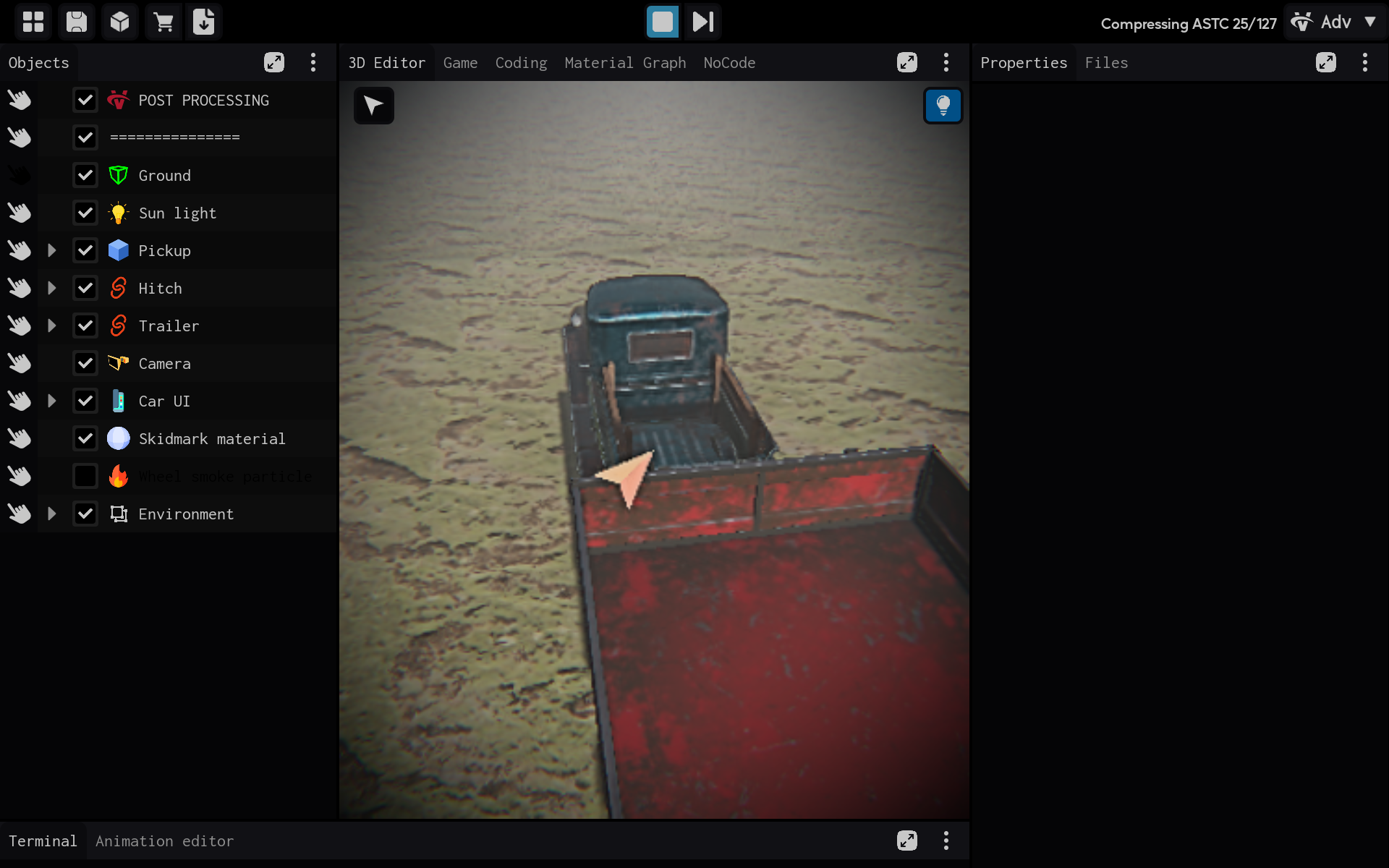
Creating a Project from a Template
Templates give you a ready-made starting point. In this guide, the Double hitch pickup template is used as an example, but you can choose any template you prefer. You can change the template's assets and setup after the project is created.
Steps
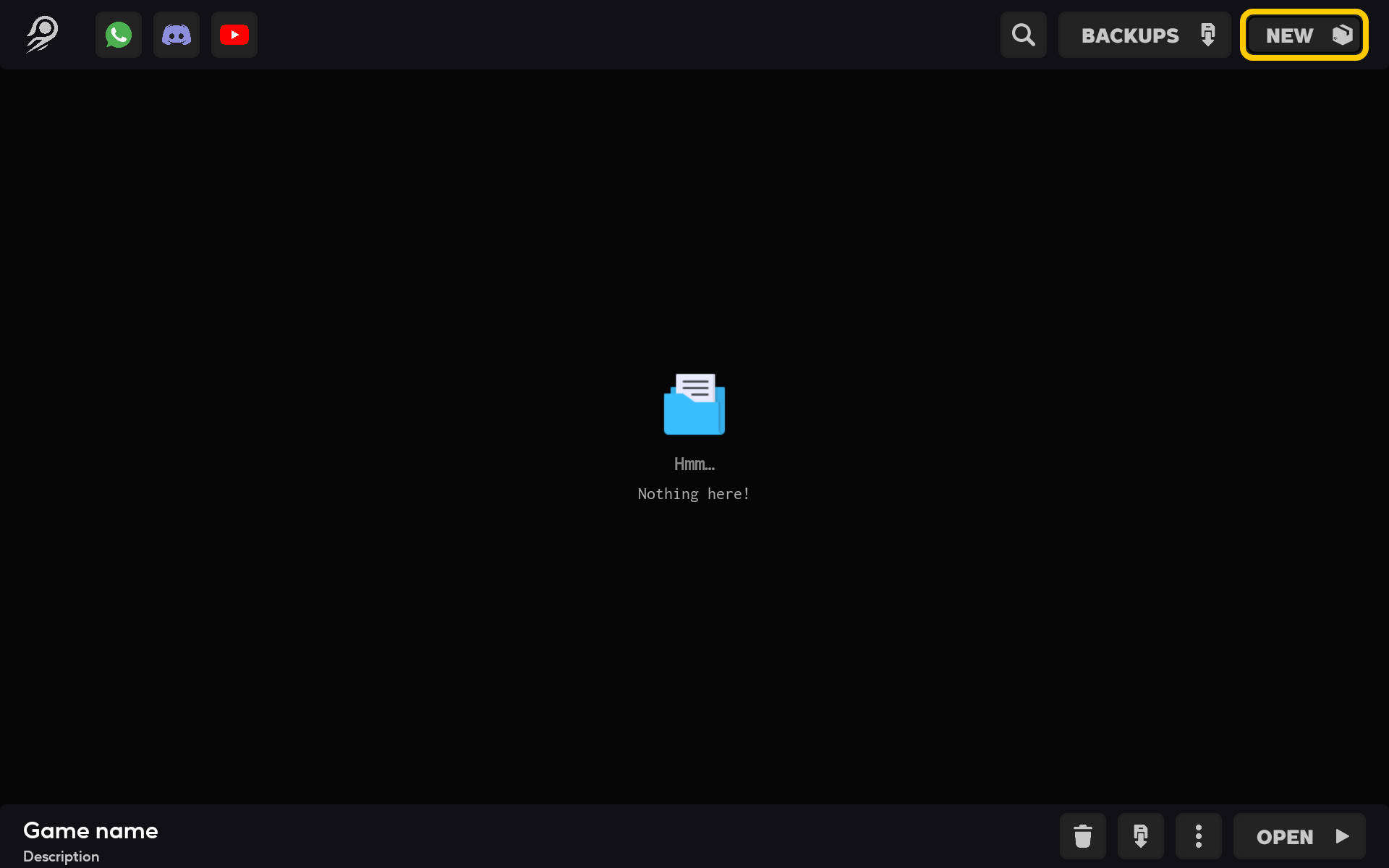
1. Open the project menu
Tap New project on the ITsMagic home screen.
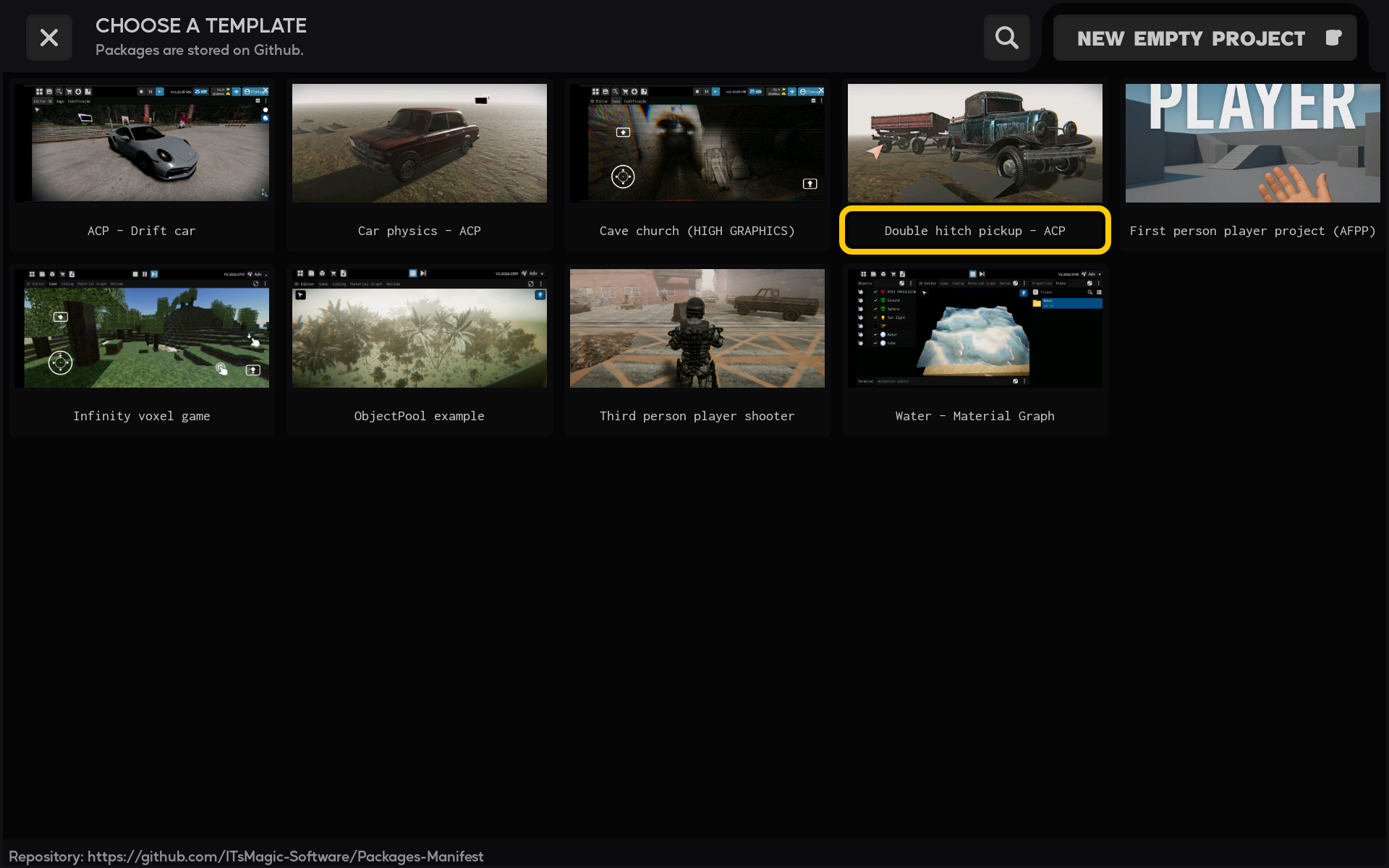
2. Select a template
Select any template you would like to use. This demonstration uses Double hitch pickup as an example.
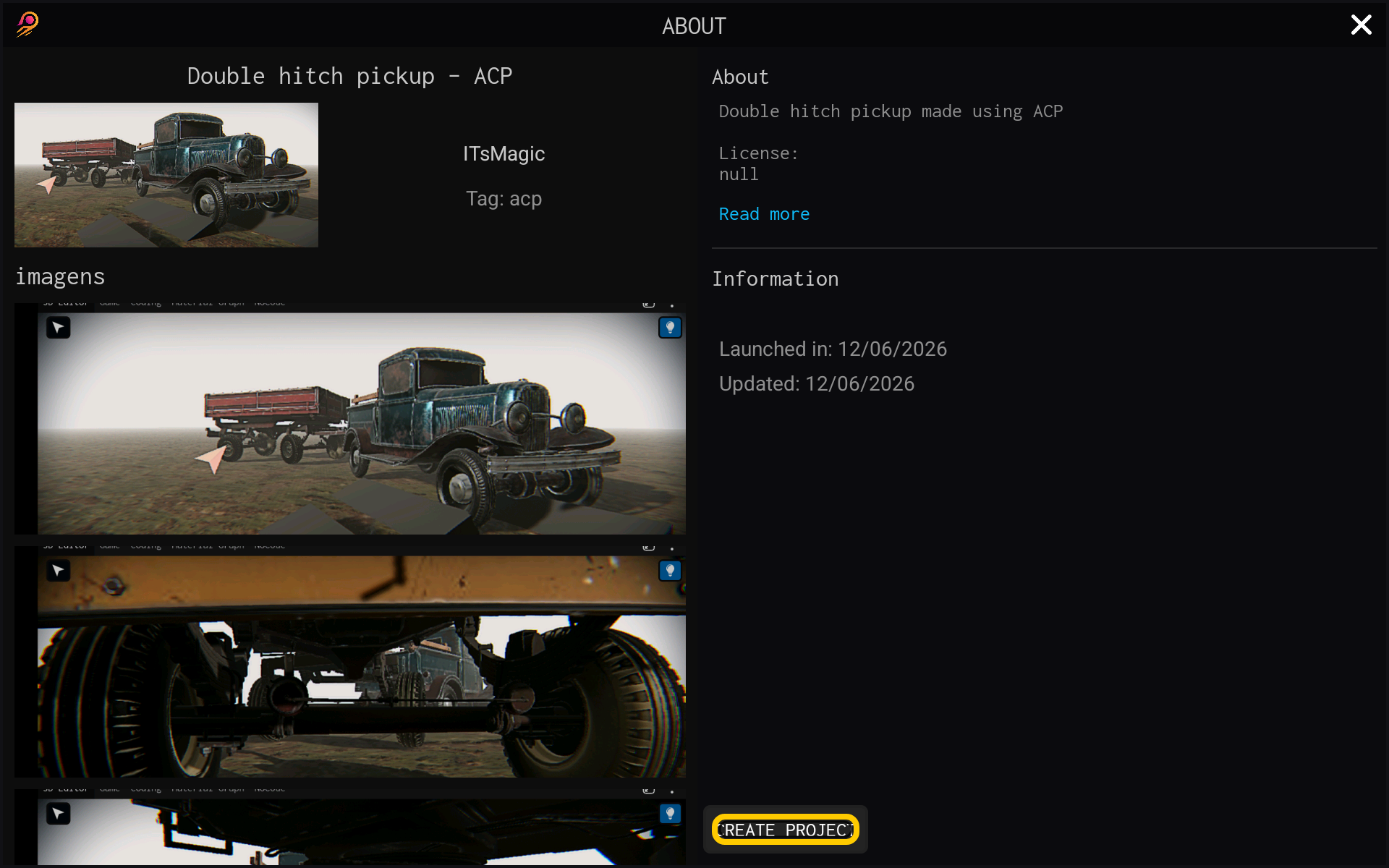
3. Start from the template
Tap Create project to use the selected template.
4. Name your project
Enter a short, recognizable name in Project title. Use a name that describes your own project, rather than relying on the template name.
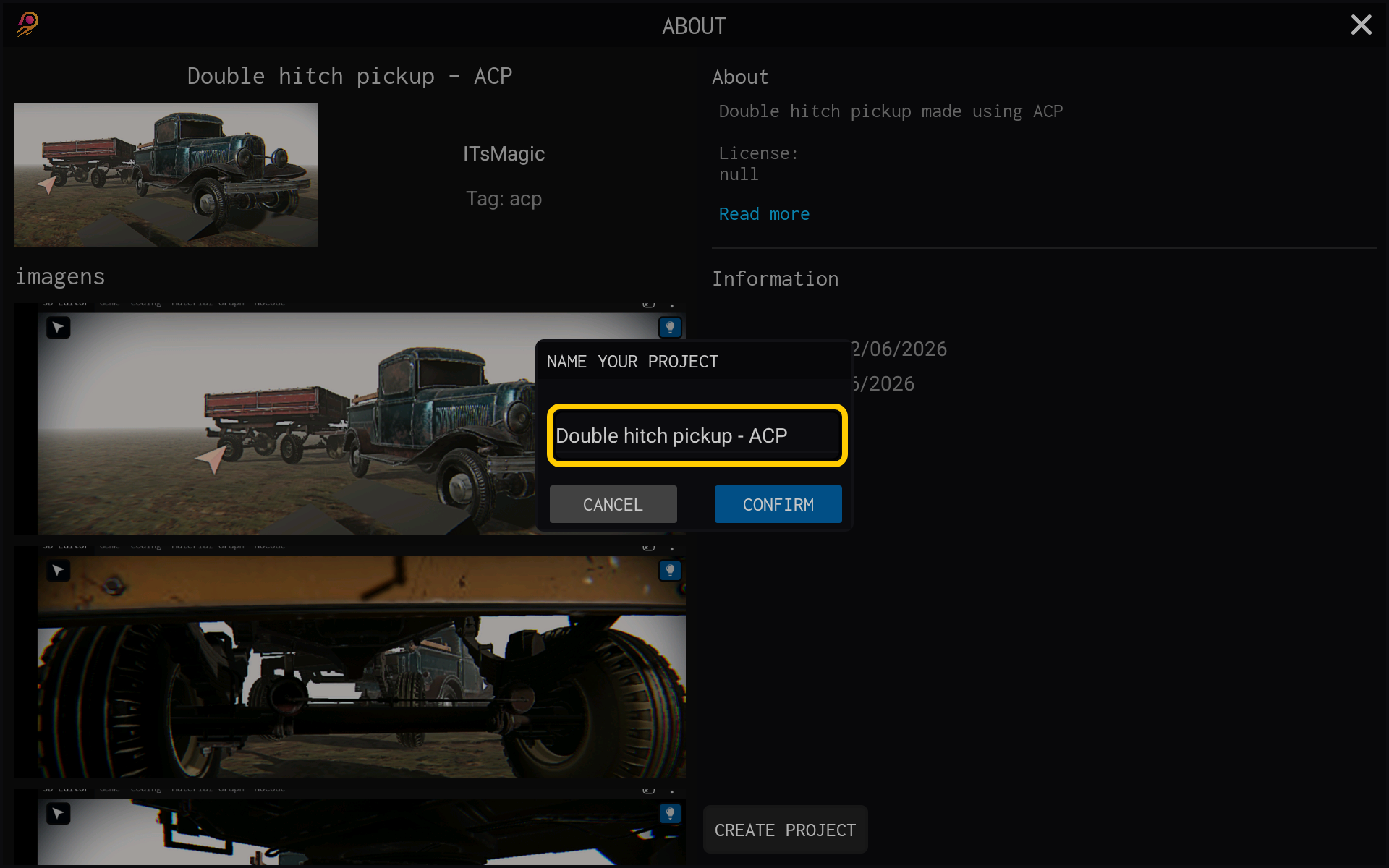
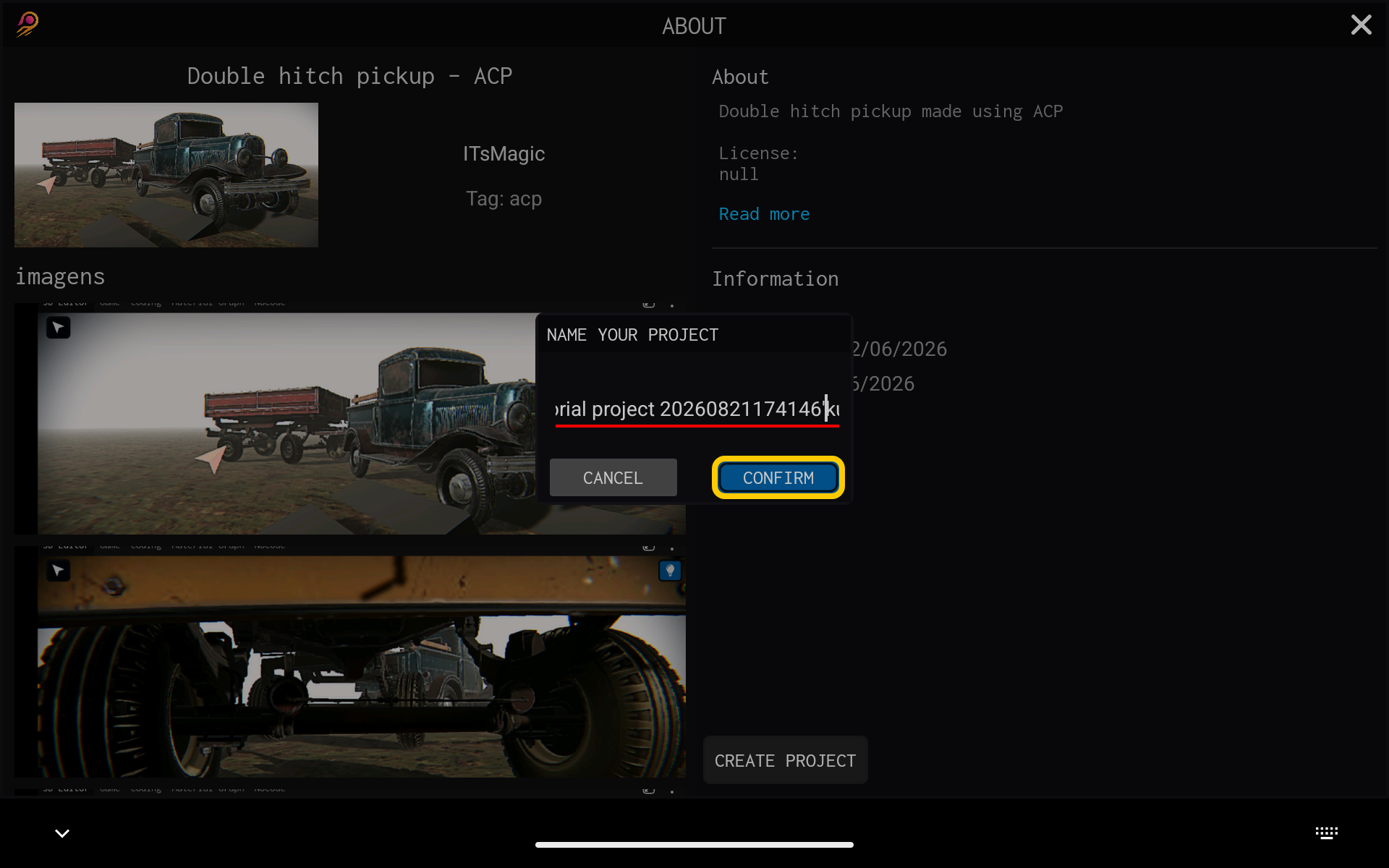
5. Create the project
Tap Confirm. ITsMagic will create your project with the template's initial assets and setup.
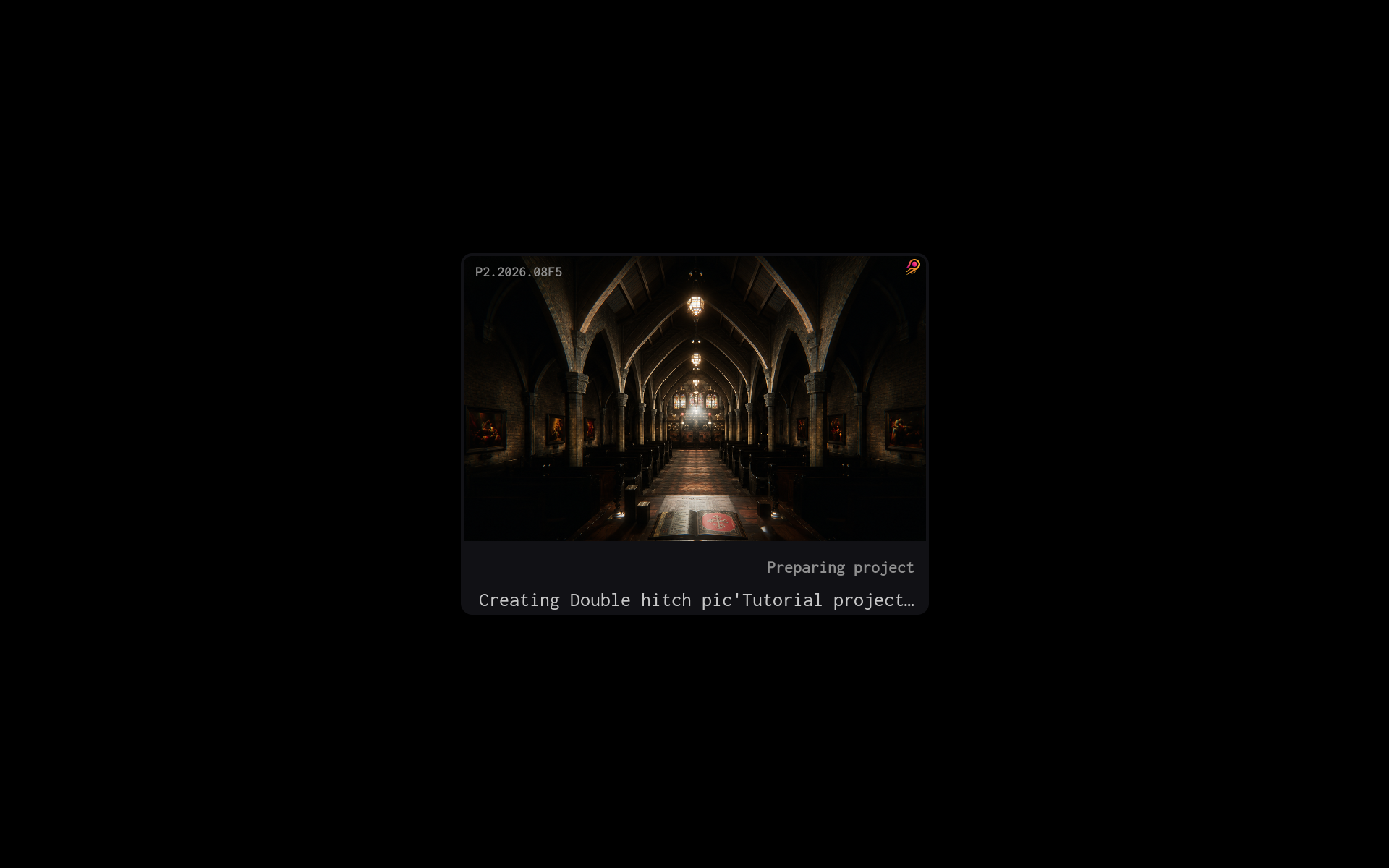
6. Wait while the project opens
ITsMagic now opens and builds the project. Wait for the opening screen to finish before continuing.
7. Start working in the editor
When the new project finishes loading, it opens in the editor. You can now explore the template, replace its content, and adapt it to your own game.