Configuring AtmosphericScattering
Atmospheric scattering creates a sky and distant haze that resemble a real atmosphere.
Sky and sun colors set the palette. Sun direction and intensity position and brighten the sun. Rayleigh, Mie, clouds, and density shape the atmosphere. Resolution controls quality.
Steps
- Select the POST PROCESSING object in the Objects panel.
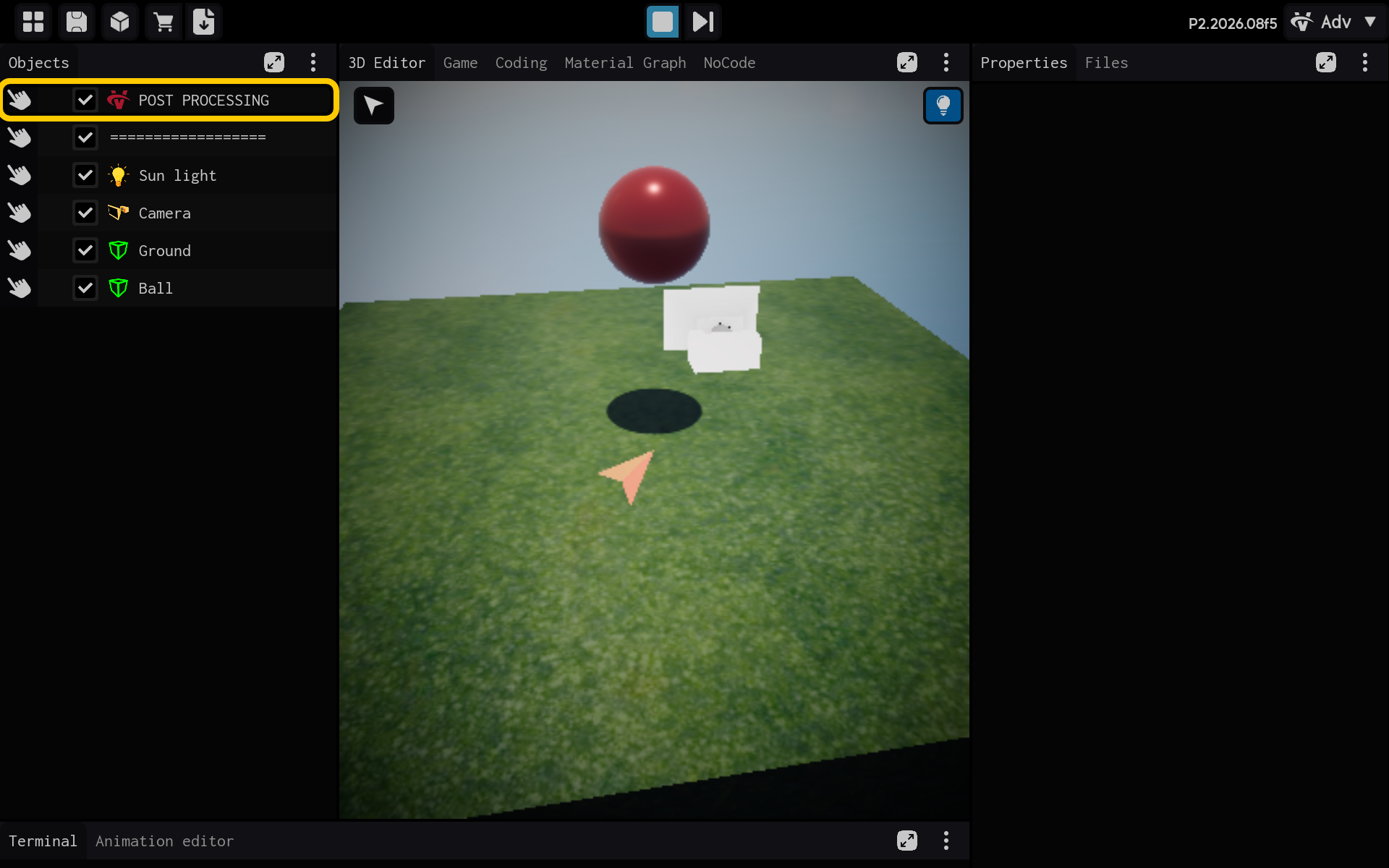
Optional: Add the AtmosphericScattering component
Use this section only if the AtmosphericScattering component is not already listed in the Properties panel. If it is already present, skip the actions in this section and continue with the main tutorial below.
2.1. Tap Add Component to add AtmosphericScattering.

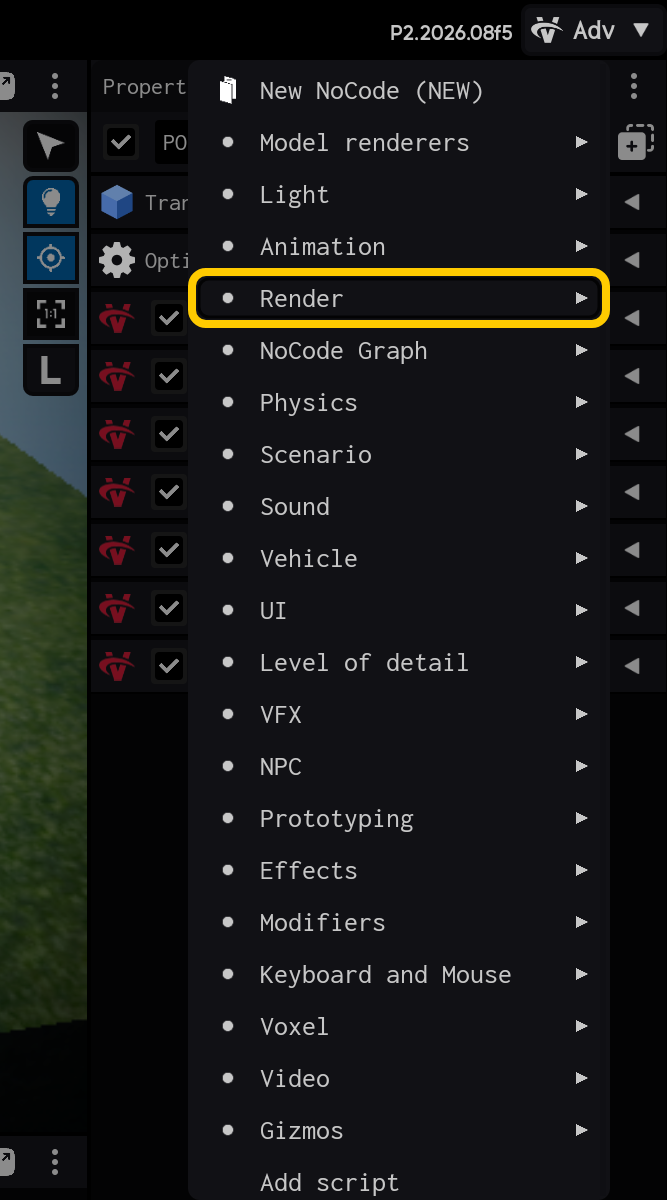
2.2. Open the Render category.
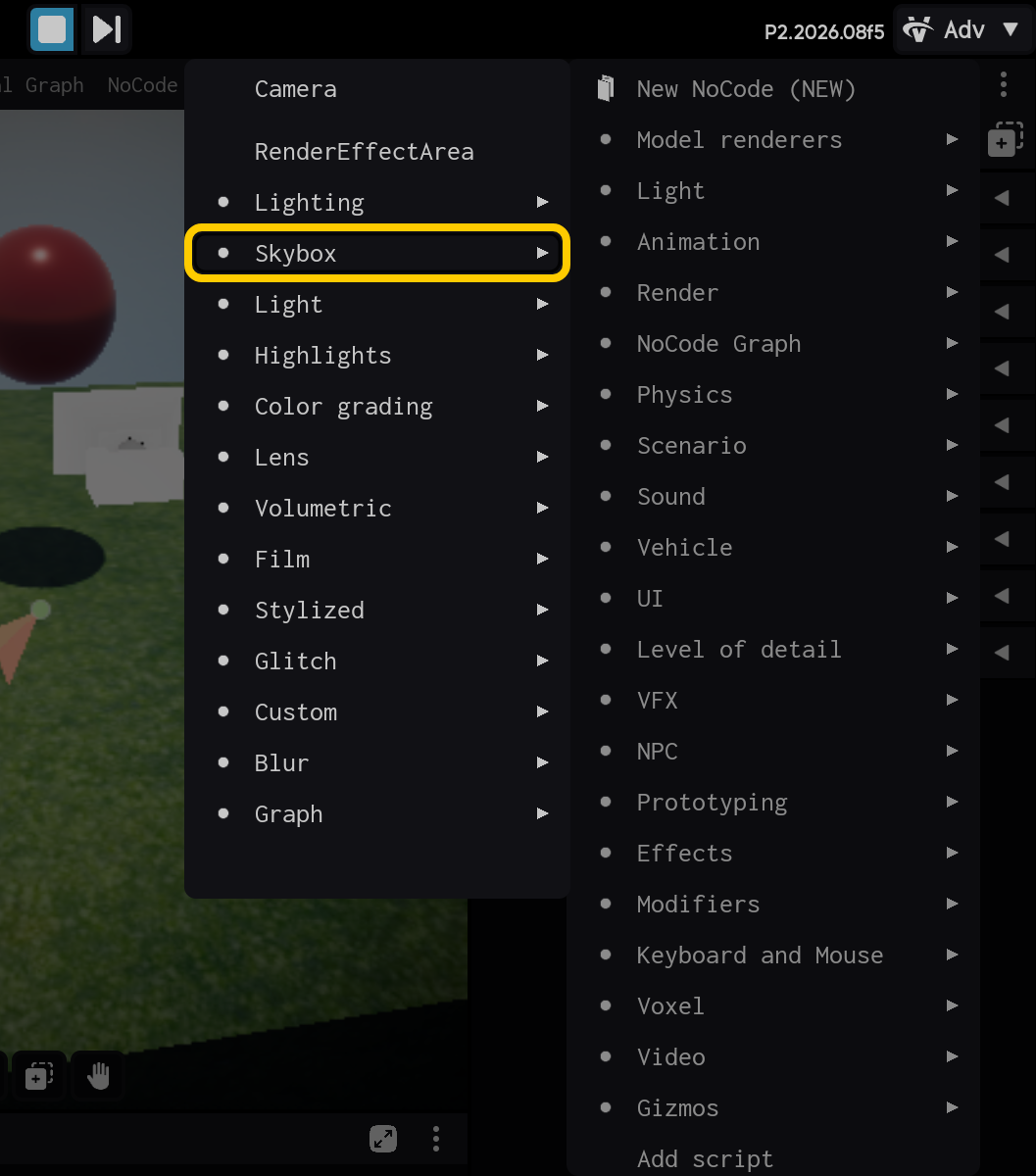
2.3. Open the Skybox category.
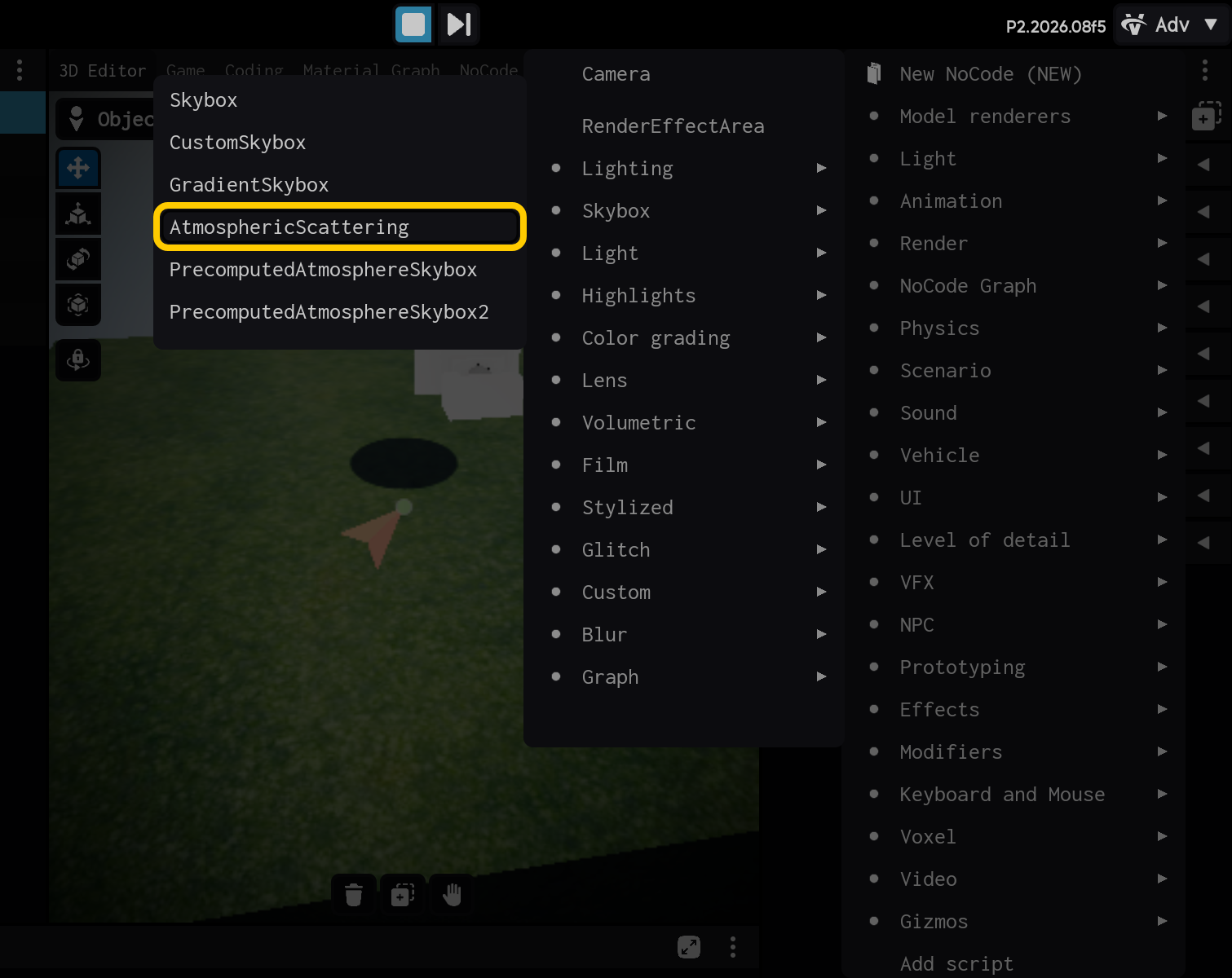
2.4. Select the AtmosphericScattering component.
End of optional section. Continue with the main tutorial below.
- Select the AtmosphericScattering component to view its settings.
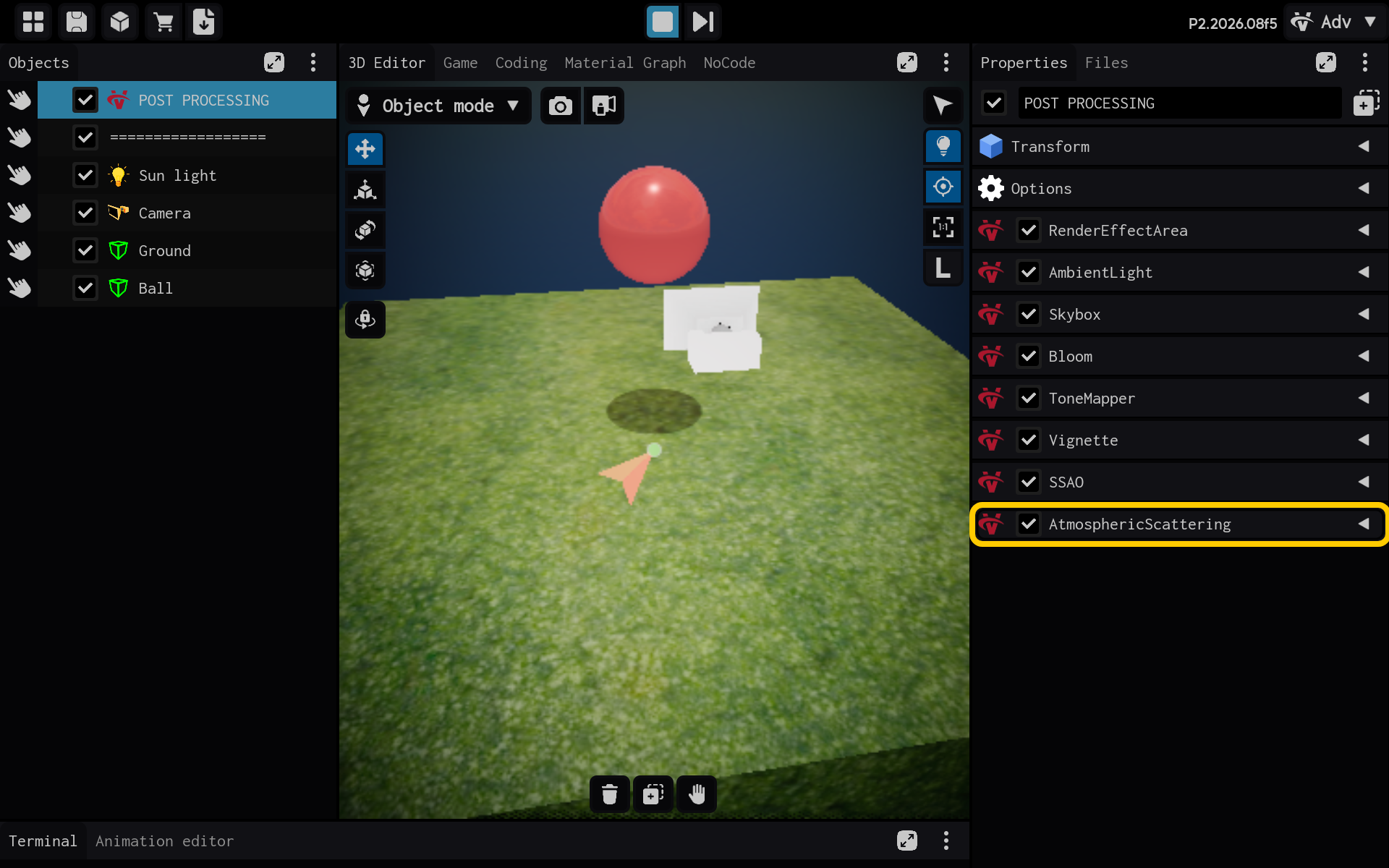
The Atmospheric Scattering controls build the sky and distant haze.
- Sky and sun colors: The colors of the atmosphere and sunlight.
- Sun direction and intensity: Where the sun is and how bright it is.
- Rayleigh and Mie settings: The blue sky and warm haze around the sun.
- Clouds and density: Cloud coverage and atmospheric thickness.
- Resolution: The quality of the atmosphere calculation.
- AtmosphericScattering settings are visible in the Properties panel.
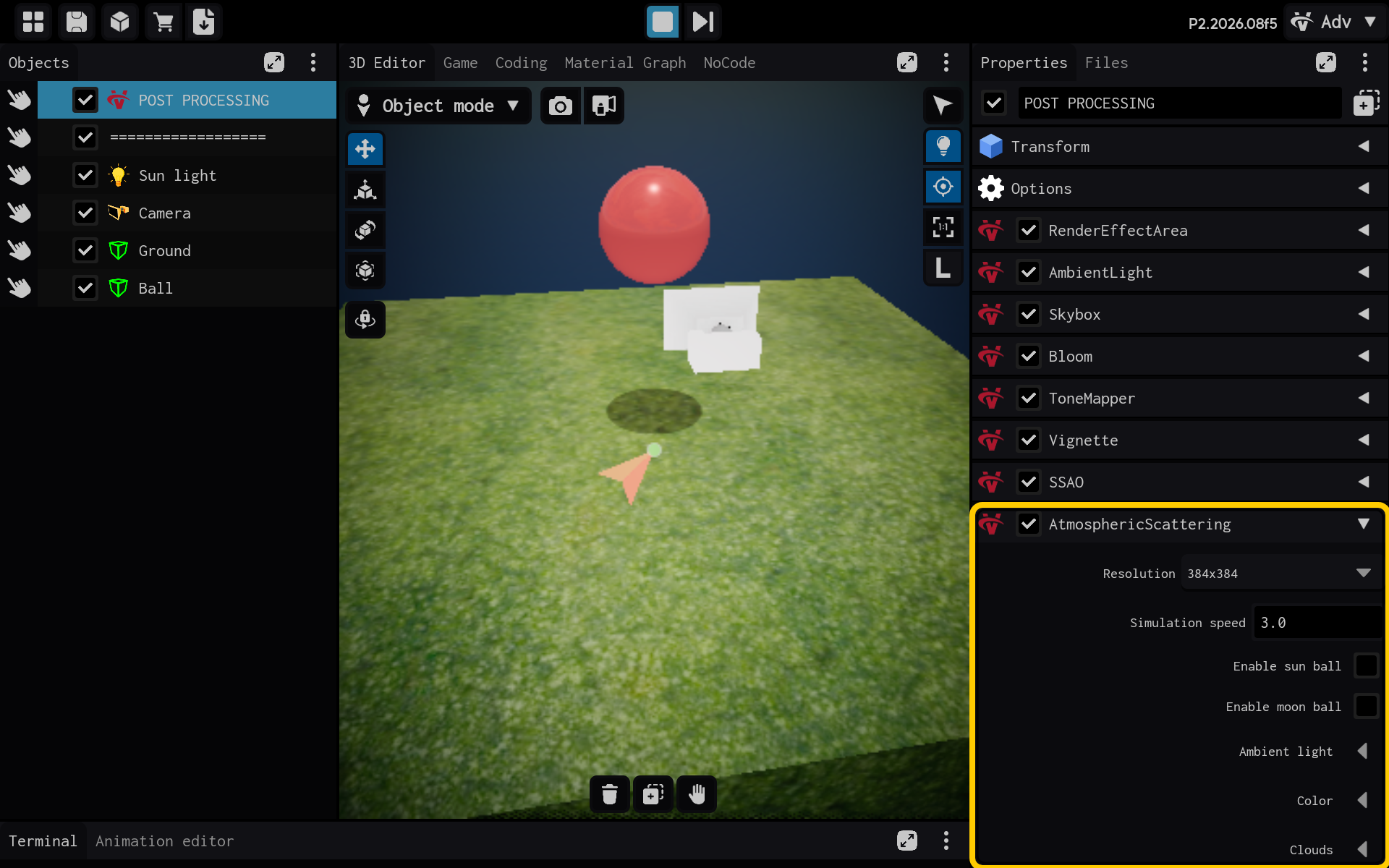
Result
The AtmosphericScattering component is now configured and its settings are visible in the Properties panel. You can adjust its values and preview the result in your scene.