Configuring LensDistortion
Lens Distortion bends the image to imitate a curved camera lens.
Distortion bends the image outward or inward. Scale keeps it framed.
Steps
- Select the POST PROCESSING object in the Objects panel.
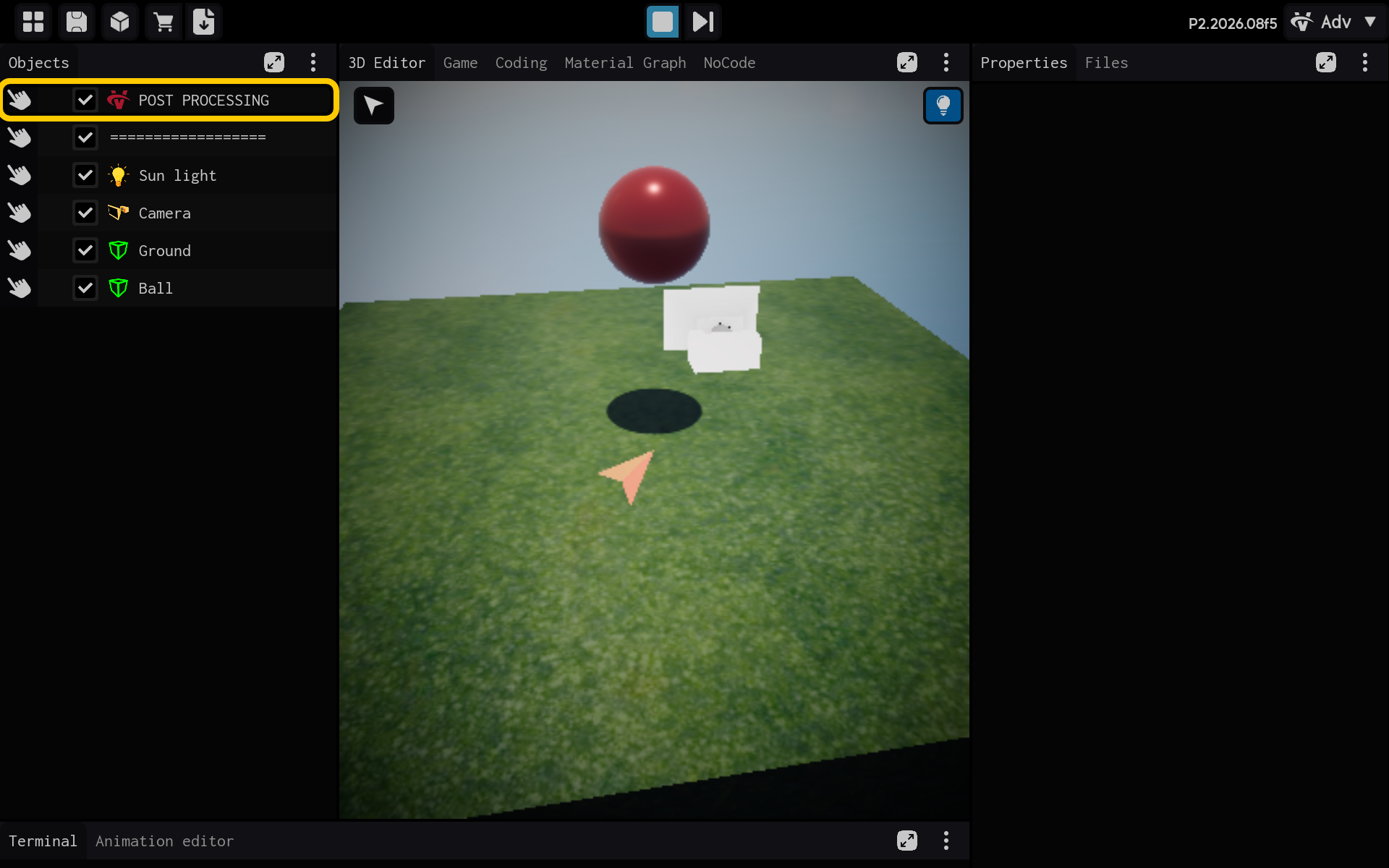
Optional: Add the LensDistortion component
Use this section only if the LensDistortion component is not already listed in the Properties panel. If it is already present, skip the actions in this section and continue with the main tutorial below.
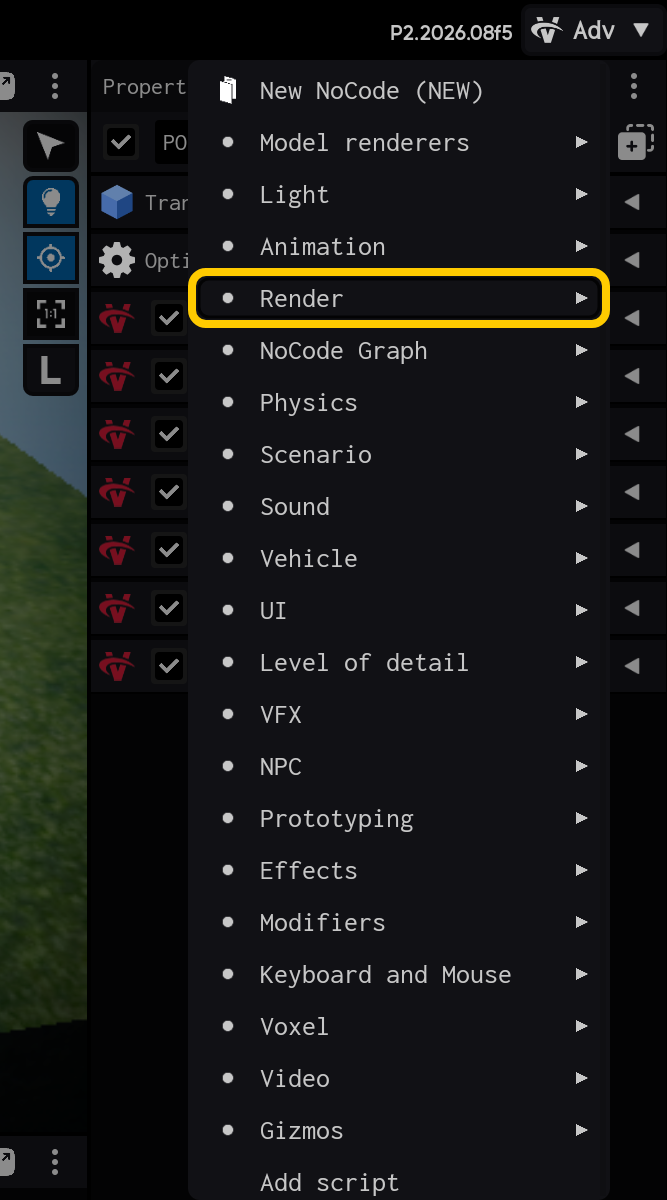
2.1. Tap Add Component to add LensDistortion.

2.2. Open the Render category.
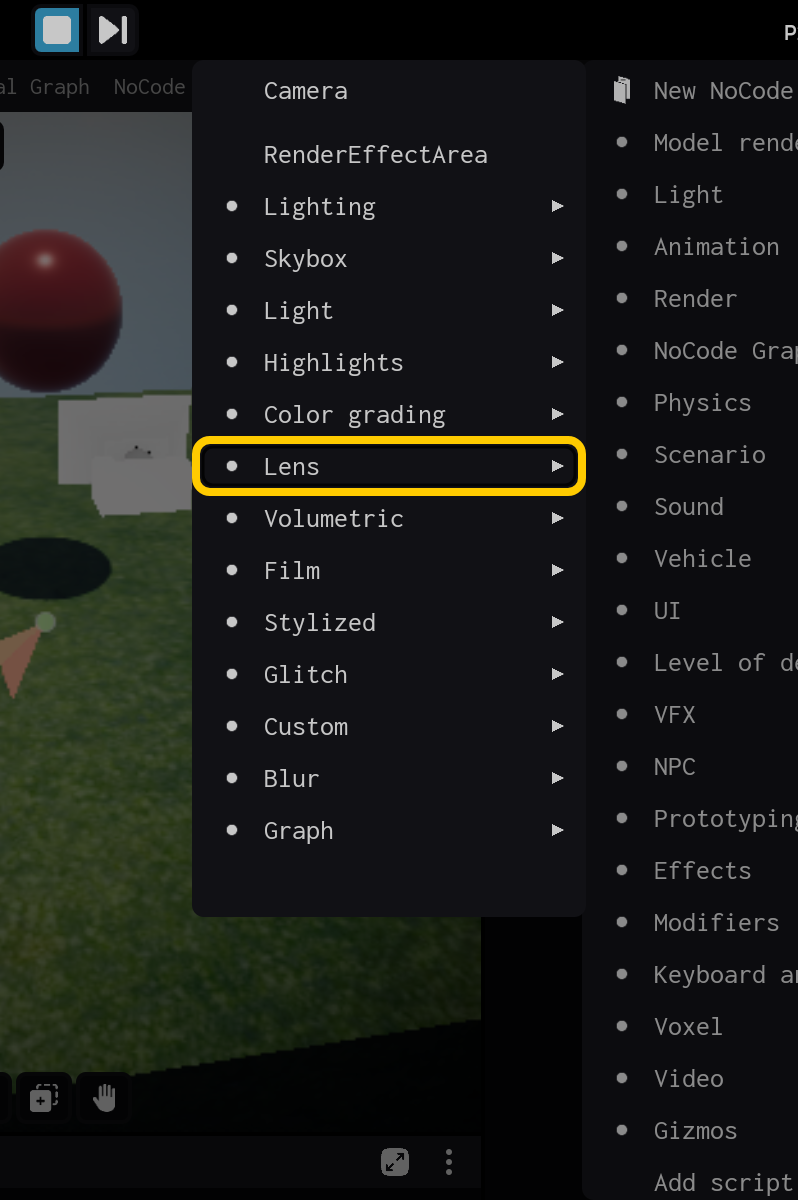
2.3. Open the Lens category.
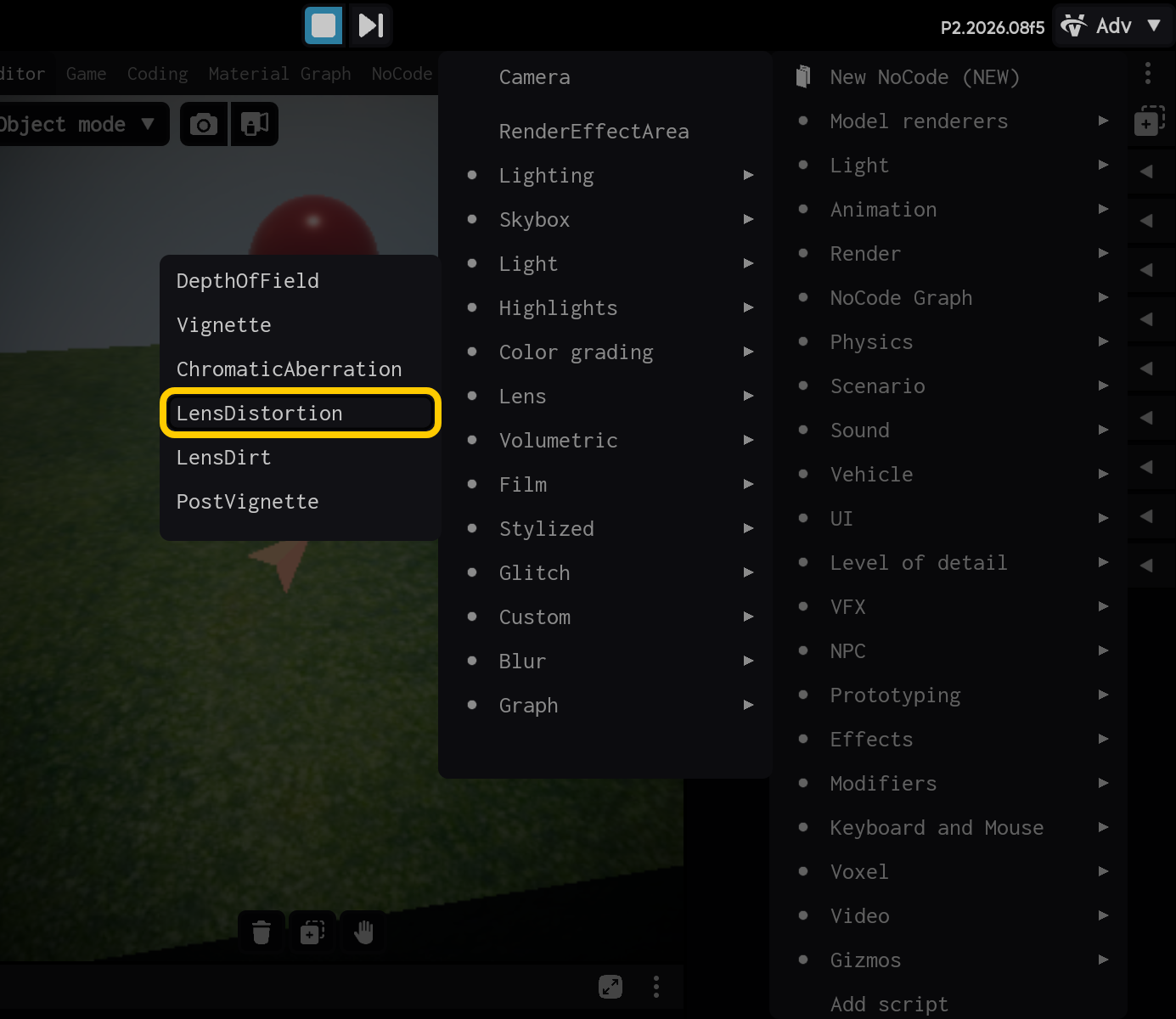
2.4. Select the LensDistortion component.
End of optional section. Continue with the main tutorial below.
- Select the LensDistortion component to view its settings.
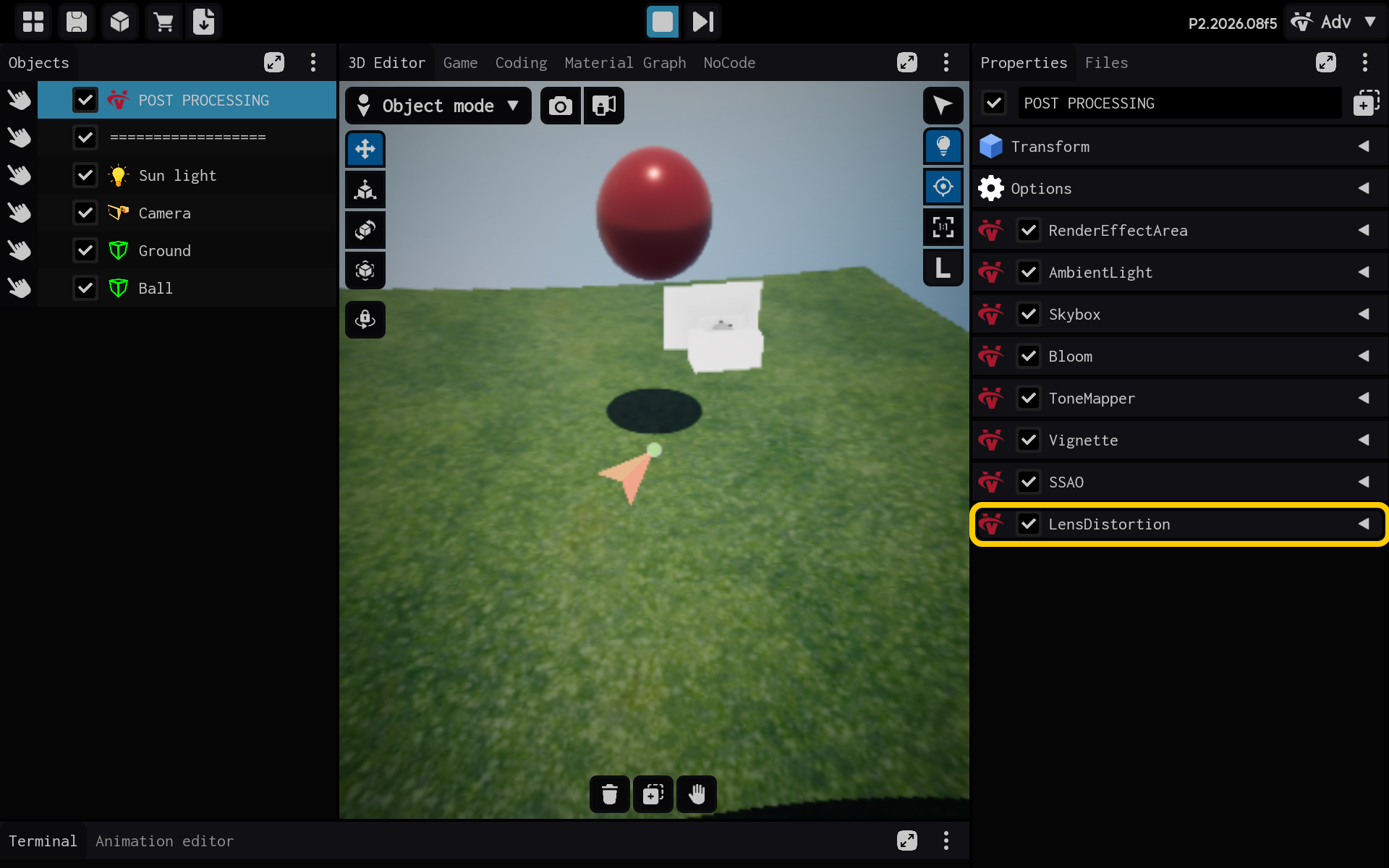
Lens Distortion bends the image like a curved camera lens.
- Distortion: Bends the image inward or outward.
- Scale: Keeps the image framed after bending.
- LensDistortion settings are visible in Properties.
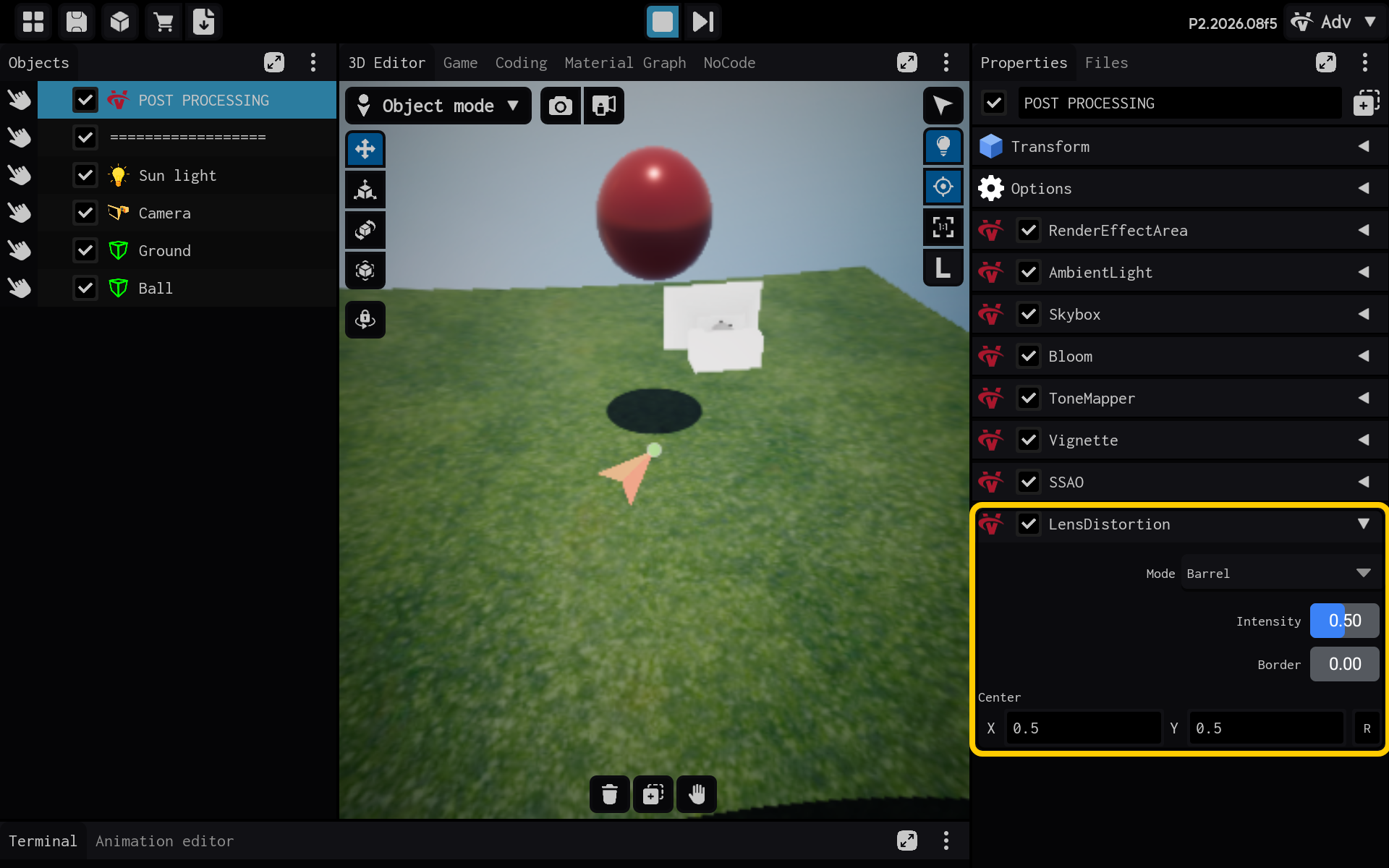
Result
The LensDistortion component is now configured and its settings are visible in the Properties panel. You can adjust its values and preview the result in your scene.