Configuring Bloom
Bloom creates a soft glow around very bright parts of the image.
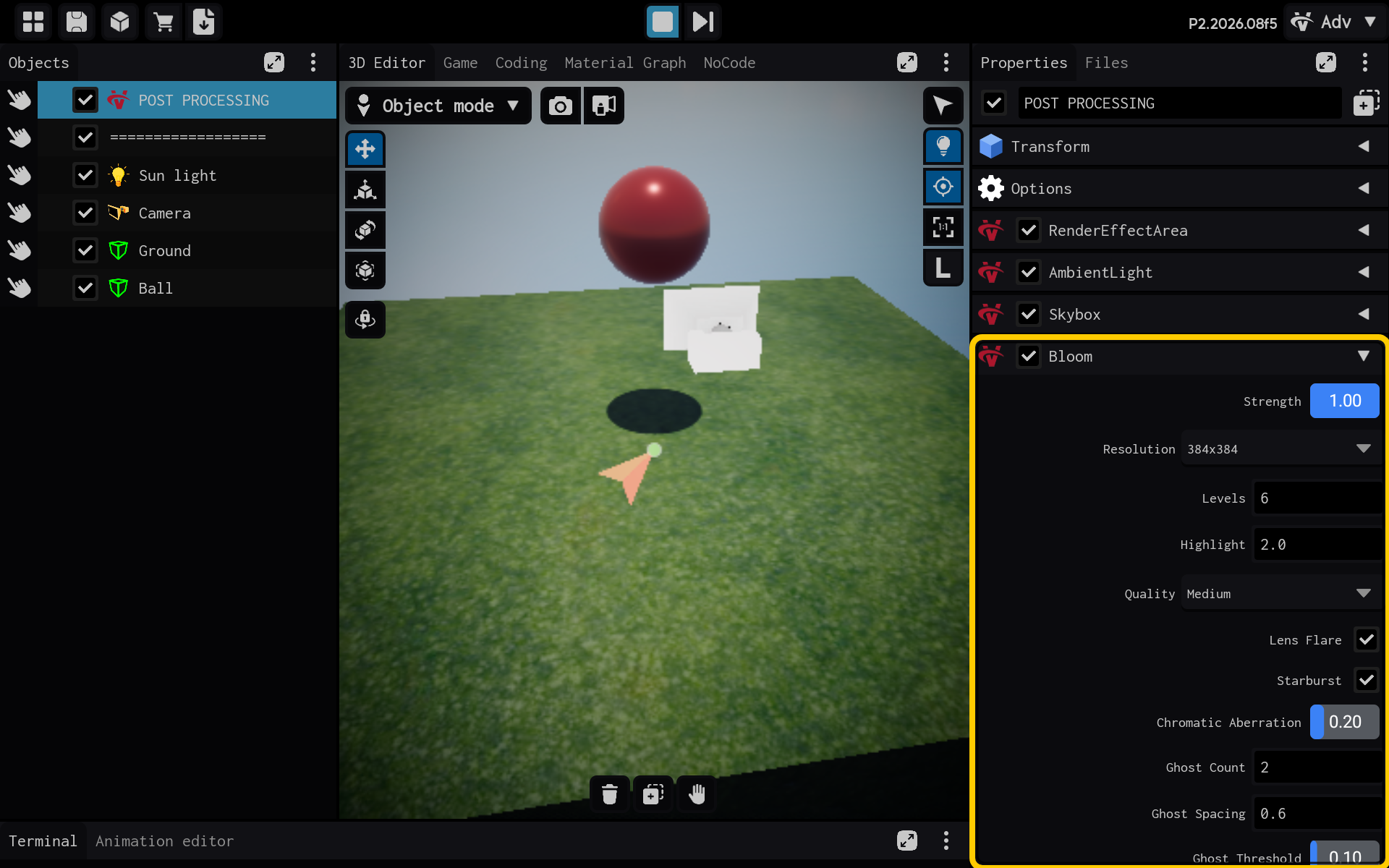
Strength controls glow. Threshold chooses bright pixels. Blur size and levels control spread. Quality balances appearance and performance.
Steps
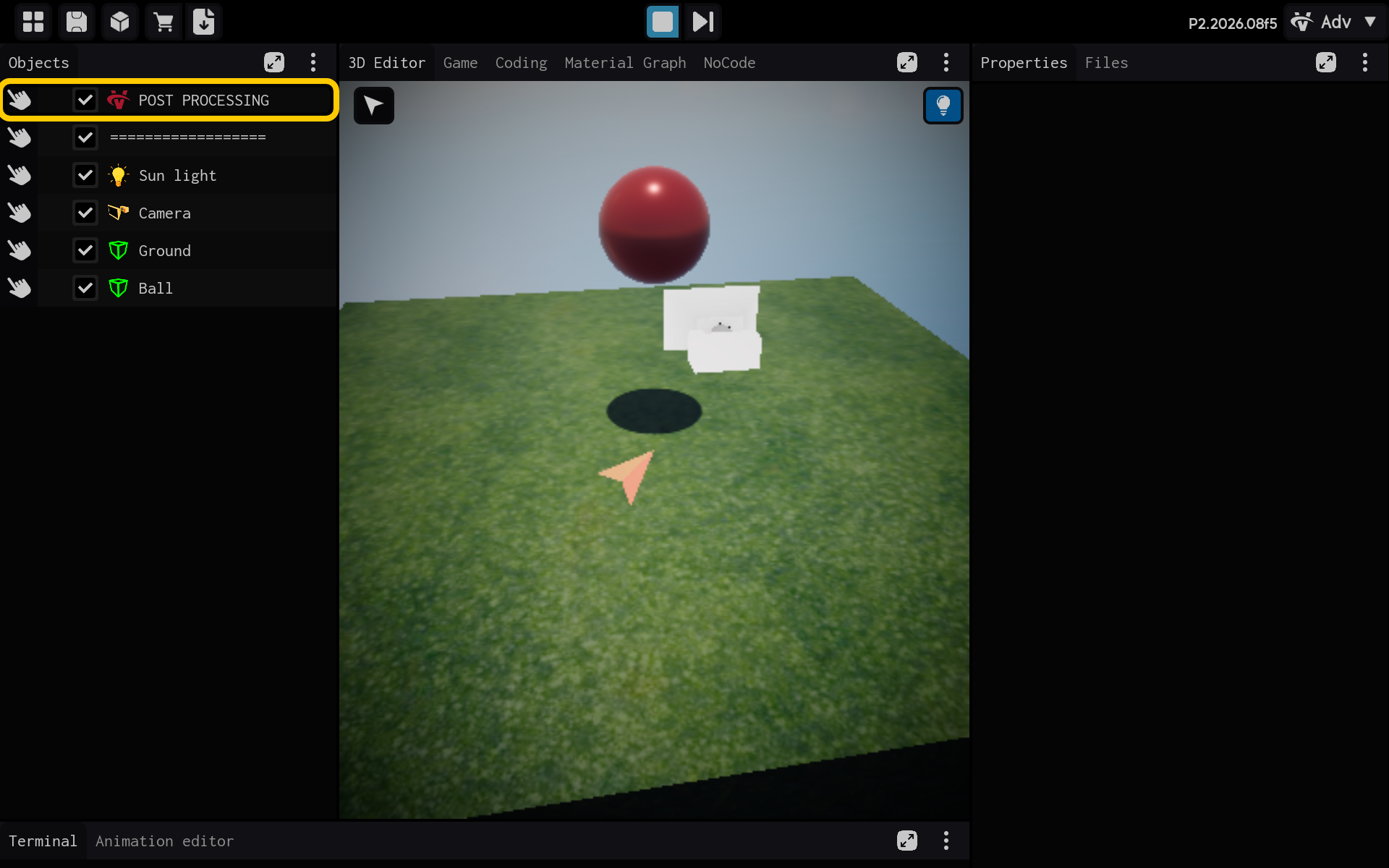
- Select the POST PROCESSING object in the Objects panel.
Optional: Add the Bloom component
Use this section only if the Bloom component is not already listed in the Properties panel. If it is already present, skip the actions in this section and continue with the main tutorial below.
End of optional section. Continue with the main tutorial below.
- Select the Bloom component to view its settings.
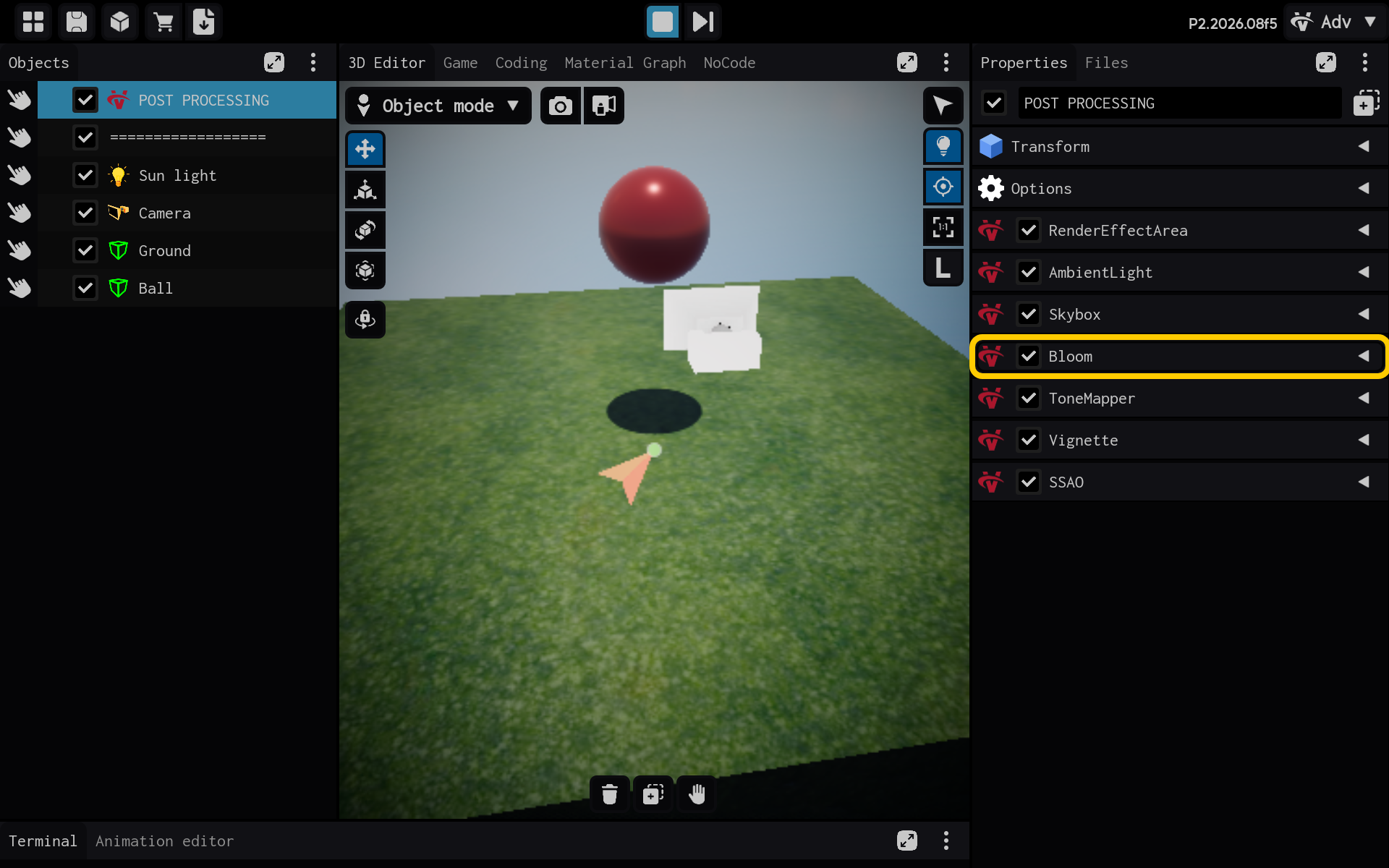
Bloom makes bright parts of the image glow.
- Strength: How strong the glow is.
- Threshold: How bright a pixel must be before it glows.
- Blur size and levels: How far and smoothly the glow spreads.
- Quality: The balance between smoothness and performance.
- Highlight, ghost, and halo controls: Additional streaks and reflections around bright areas.
- Bloom settings are visible in the Properties panel.
Result
The Bloom component is now configured and its settings are visible in the Properties panel. You can adjust its values and preview the result in your scene.