Configuring Contrast
Contrast changes the difference between light and dark areas.
Contrast changes the difference between light and dark areas.
Steps
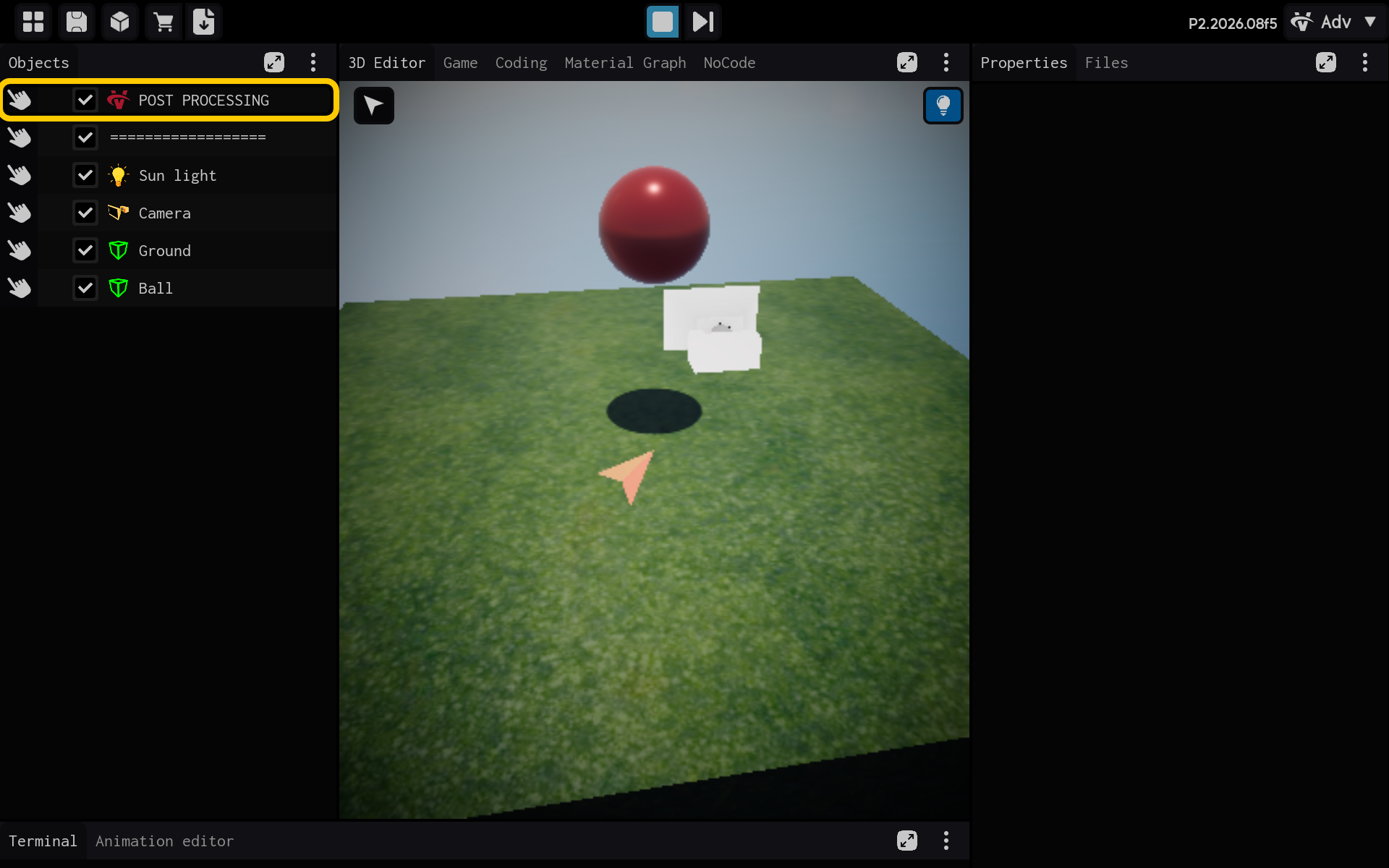
- Select the POST PROCESSING object in the Objects panel.
Optional: Add the Contrast component
Use this section only if the Contrast component is not already listed in the Properties panel. If it is already present, skip the actions in this section and continue with the main tutorial below.
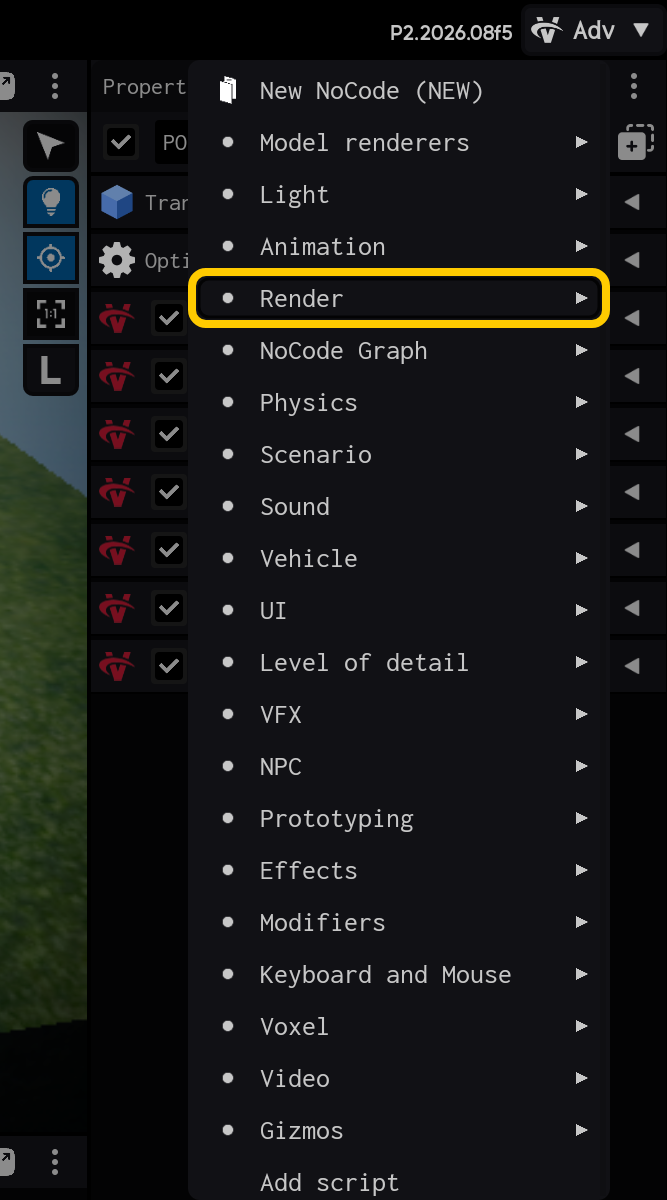
2.1. Tap Add Component to add Contrast.

2.2. Open the Render category.
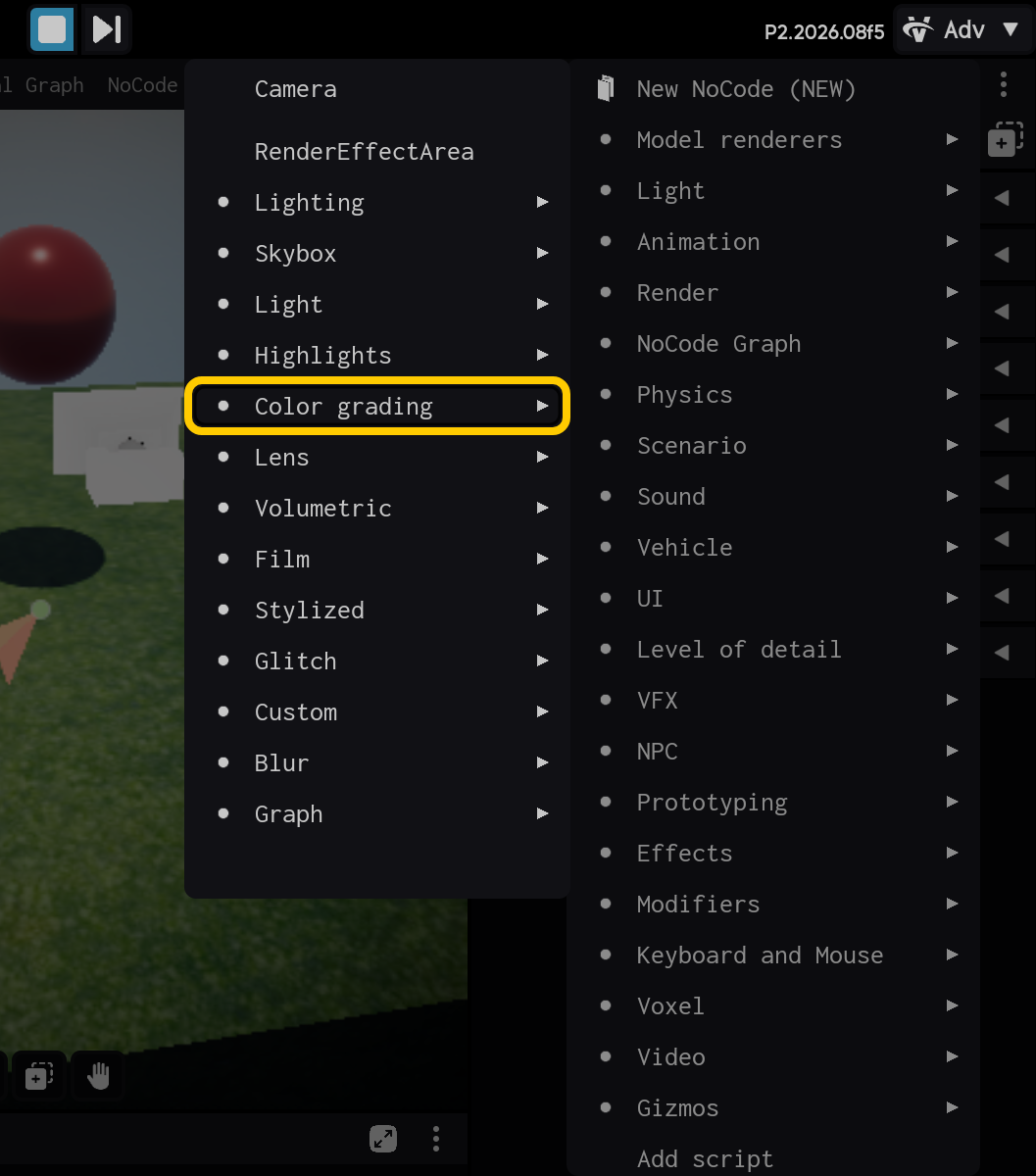
2.3. Open the Color grading category.
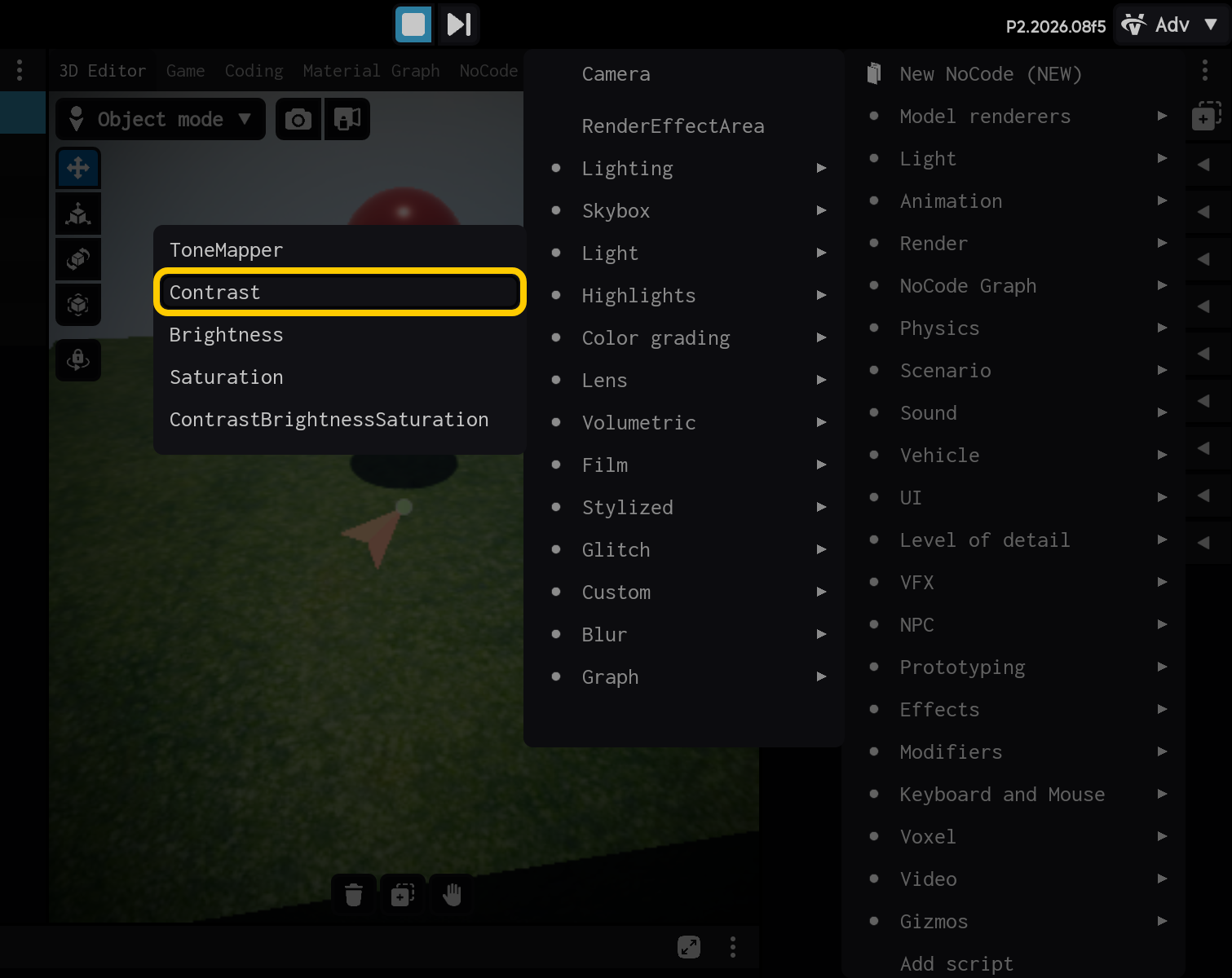
2.4. Select the Contrast component.
End of optional section. Continue with the main tutorial below.
- Select the Contrast component to view its settings.
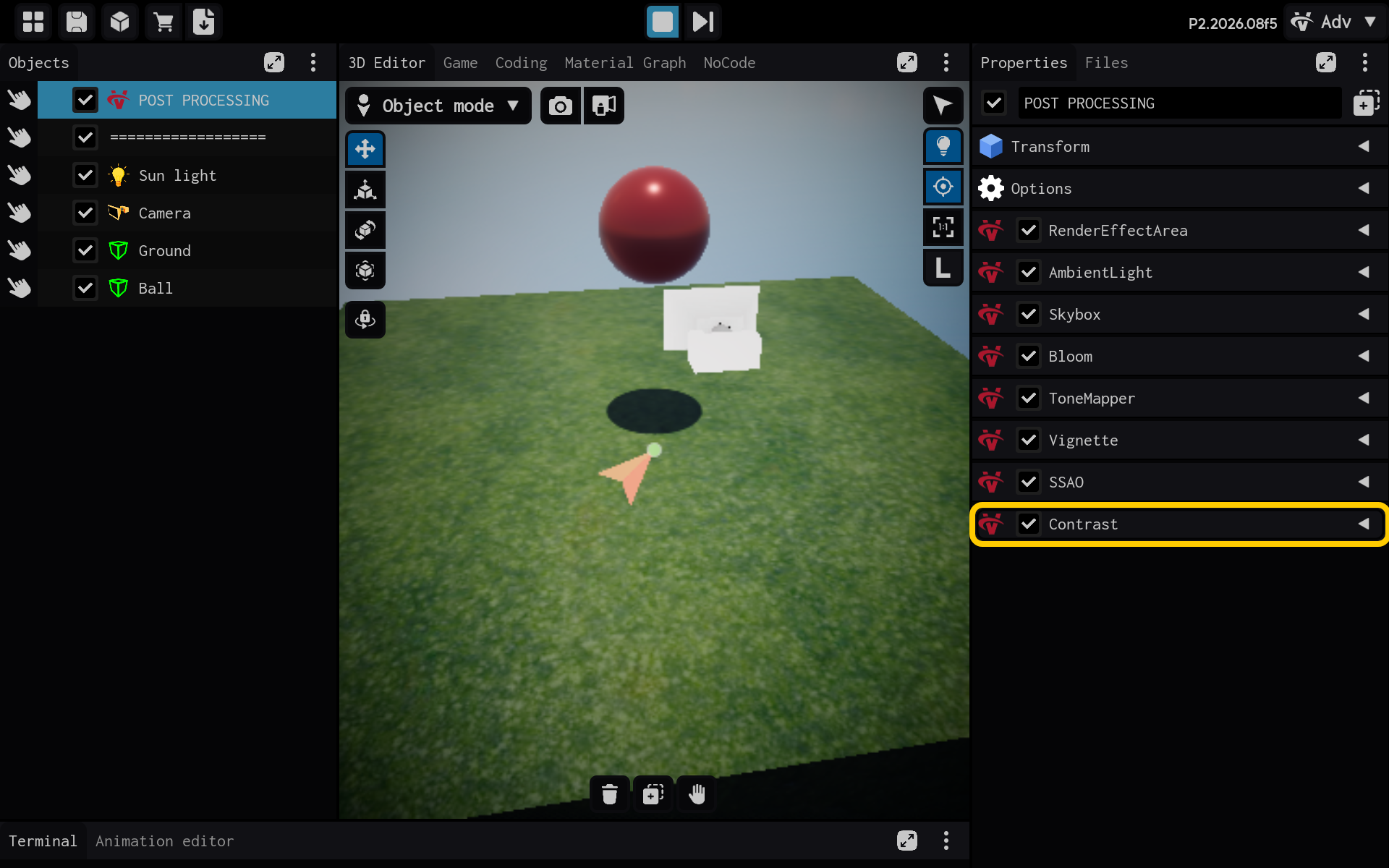
Contrast changes the separation between light and dark areas.
- Contrast: Higher values make differences stronger; lower values flatten the image.
- Contrast settings are visible in Properties.
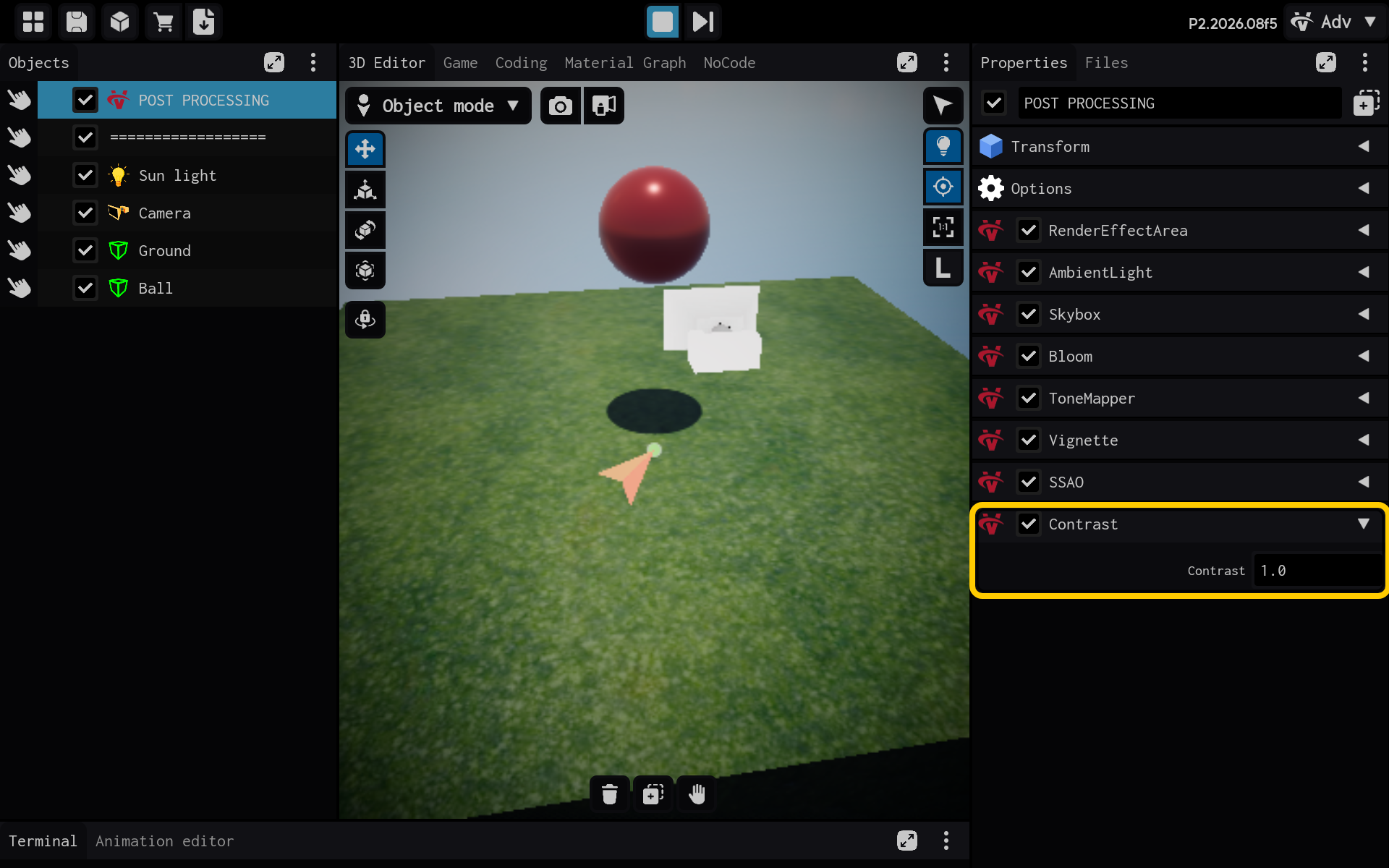
Result
The Contrast component is now configured and its settings are visible in the Properties panel. You can adjust its values and preview the result in your scene.